Adding Data File
|

|
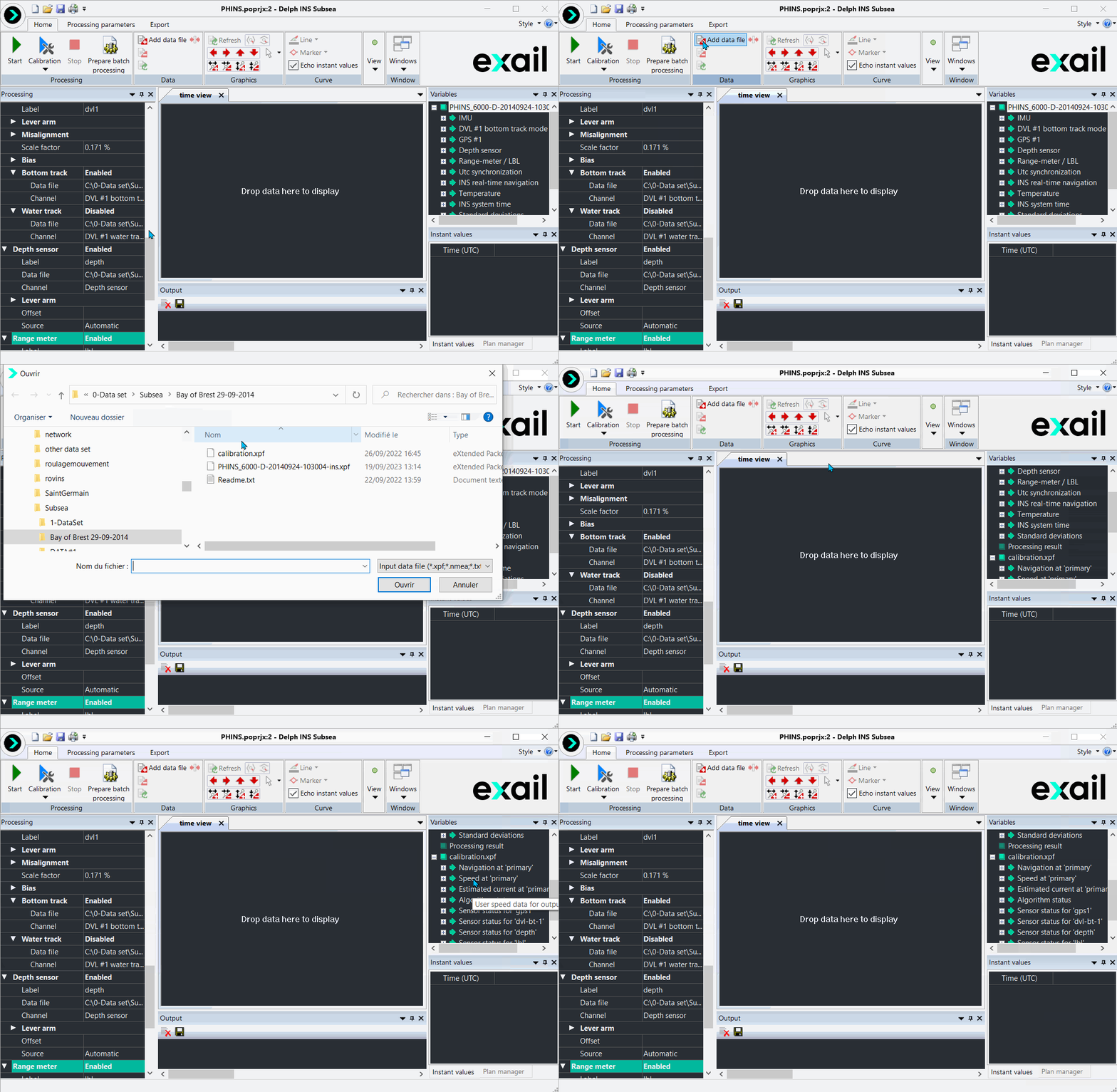
Click on the picture to view the procedure
|
|
|
|
1.
|
Click on  option in the Home ribbon. A new window is displayed to select the input data file. This file can have one of the following extensions: option in the Home ribbon. A new window is displayed to select the input data file. This file can have one of the following extensions: |
|
>
|
NMEA files: .nmea: .txt. In case of NMEA file, the Raw data file recorded by the INS must be converted to XPF format data files before being inserted into Delph INS Subsea. |
|
>
|
Septentrio binary file: *.sbf |
|
2.
|
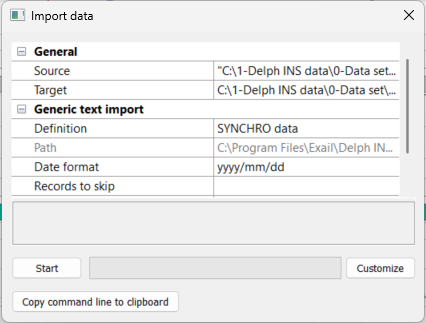
Click on OK button, then the following window is then displayed: |
|
3.
|
If needed, select and/or modify the following fields: |
|
>
|
Target: destination file. |
|
>
|
Definition: definition of the data type |
|
4.
|
Click on Copy command line to clipboard button in order to use this command line later. |
|
5.
|
Click on Start button. Information on the file are displayed in the Output panel. |
The content of the Output panel can be saved into a file by clicking on icon. The output panel can be cleaned by clicking on
  icon.
icon.
|
6.
|
At the end of the conversion the data file is automatically added in the Variables panel: |

|
File contents are continuously analyzed in a background task.
INS configuration file is available in the project directory with end of file like "-ins.conf.html".
For large files, all the channels are not immediately displayed: they only appear once all the fields they contain have been loaded by Delph INS Subsea, which can take few seconds.
|
If Delph INS Subsea is unable to assemble several post-processing files correctly (part1.log, part2.log, part3.log,..), you can do this manually on the command line using the COPY command:
copy /B part1.log + part2.log + part3.log output.log