Customizing the user defined template
You can export Delph INS Subsea data under the format provided with user defined template. You can also customize these templates.
|
1.
|
In the Variables panel, right click on the desired variable and select Export using a user defined template. |
|
2.
|
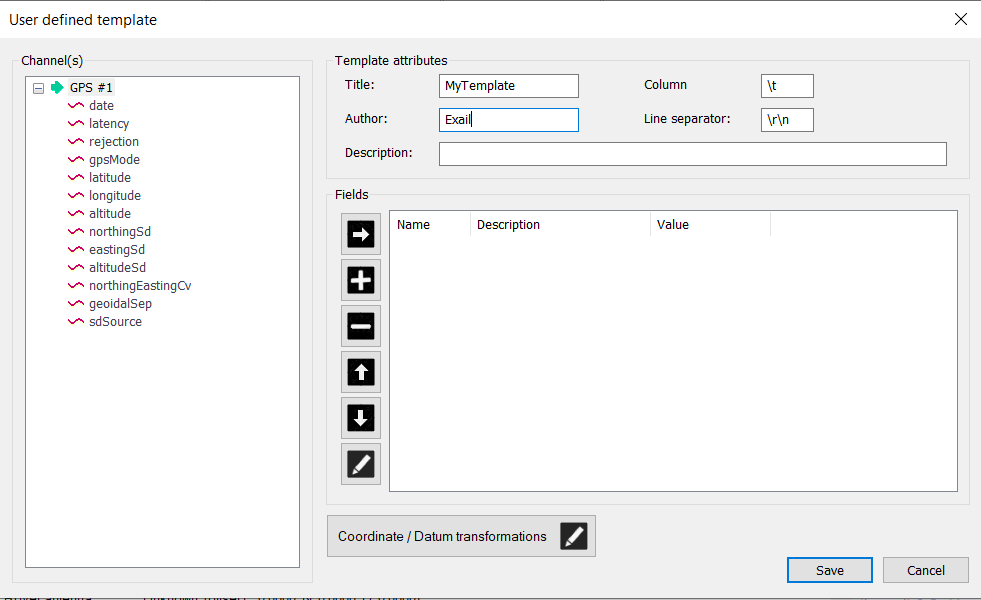
Click on Customize button, the following window is displayed: |
|
3.
|
Enter the template attributes: |
|
>
|
Title: title of your template |
|
>
|
Author: name of the template author |
|
>
|
Description: detailed description of your template |
|
>
|
Column: ndicates what type of item separator should be used to separate in columns |
|
>
|
Line separator: indicates what type of line separator should be used in order to display the results. |
|
4.
|
Select one field of the selected channel and click on  icon to add the field into the list of the field which will be composed the template. For example: icon to add the field into the list of the field which will be composed the template. For example: |
|
5.
|
To edit the field, double-click on the line of the field or select the field then click on  icon. icon. |
|
6.
|
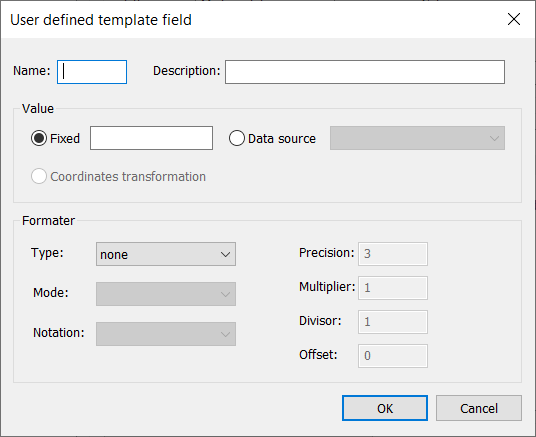
You can add another field by clicking on  icon. The following window is then displayed: icon. The following window is then displayed: |
|
7.
|
Enter the field attributes: |
|
>
|
Name: name of the field |
|
>
|
Description: detailed description of the field |
|
>
|
Value: fixed value (any characters) or data souce selected in the list |
|
>
|
Formater: select the field in the list and enter the corresponding value |
|
8.
|
Click on OK button, the field is added to the list. |
|
9.
|
To add coordinate or datum transformations, click on  icon. Another window is displayed: icon. Another window is displayed: |

Select the fields and the transformation parameters. Then click on OK button. The fields ares added to the list as posX, posY and posZ.
|
10.
|
You can move each field in the list by selecting it then: |
|
>
|
by clicking on  to move the field up to move the field up |
|
>
|
by clicking on  to move the field down to move the field down |
|
11.
|
To save the created template, click on Save button. Enter the name of the template then click on OK button. The template is saved into the "\Exail\Delph INS Subsea\Templates" directory. |
|
12.
|
To create another user defined template: |
|
>
|
Click on Customize button of the Export Data windows. |
|
>
|
Delete the field by selecting the field and clicking on the  icon. icon.
|
|
>
|
Enter new Title, new Author and new Description for the new template. |
|
>
|
Add the fields, see steps 6 to 10. |
|
>
|
Save the template by clicking on Save button then enter the name of the template. Click on OK button, the template is saved into the "\Exail\Delph INS Subsea\Templates" directory. |

