Home Tab
The Home tab hides/displays some toolbars with icons as shortcut.

Home tab
Home tab explanation
|
Button |
Key shortcut |
Explanation |
|
Processing group |
||
|
|
[ctrl + F5] |
Launches the processing if it is not already running. |
|
|
|
Launches the calibration with the default parameters. The arrow indicates more options: - advanced parameters: to modify the default parameters of the calibration - output results: to view the calibration results - batch file: to save the batch file |
|
|
[Shift+F5] |
Stops the processing if it is running. |
|
|
- |
Creates a parameters file (*.xml) containing all the parameters of the Processing panel to be used for batch processing. |
|
Data group |
||
|
|
- |
Add data file after selecting a file |
|
|
- |
Remove data file after selecting a file to be removed in the Variables panel |
|
|
- |
Refresh contents of the parameters in the Processing panel |
|
|
- |
Time Synchronization of additional data file |
|
|
- |
Expand all the variable files |
|
|
- |
Collapse all the variable files |
|
Graphics group |
||
|
|
- |
Select Tool: select the displayed objects. |
|
|
- |
Pan Tool: shift the display in the direction of the mouse. |
|
|
- |
Zoom Tool: draw a lasso with the mouse button down and zooms in the selected rectangle when the mouse button is released. A left click zooms in. |
|
|
- |
Statistics tool: new cursor to select a data interval and compute statistics in Statistics panel. |
|
|
[F5] |
Refresh graphics: update displayed data on graphics. |
|
|
[shift+F] |
Horizontal View All: adjust the horizontal scale to the duration of the processing. |
|
|
F |
Vertical View All: adjust the vertical scale to the data set. |
|
|
[Shift+U] |
Horizontal Scale Zoom Out: compress horizontally the view in the Time view. |
|
|
[Shift+Z] |
Horizontal Scale Zoom In: expand horizontally the view in the Time view. |
|
|
[Z] |
Vertical Scale Zoom Out: compress vertically the view in the Time view. |
|
|
[U] |
Vertical Scale Zoom In: expand vertically the view in the Time view. |
|
|
[←] |
Horizontal Scale Left Scroll: shift horizontally the display to the left. |
|
|
[→] |
Horizontal Scale Right Scroll: shift horizontally the display to the right. |
|
|
[↑] |
Vertical Scale Up Scroll: shift vertically upwards the display. |
|
|
[↓] |
Vertical Scale Down Scroll: shift vertically downwards the display. |
|
Curve group |
||
|
|
|
Line: selects the style line (solid, dash, dot, etc.) and line width |
|
|
|
Marker: selects the marker (line and fill type) on a curve |
|
|
Echo instant value, when it is checked, a symbol is displayed on the curve to highlight values displayed in the Instant values panel |
|
|
|
[Del] |
Removes the graph in the Time view. |
|
View group |
||
|
|
If activated, the status bar is displayed |
|
|
|
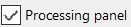
If activated, the Processing panel is displayed |
|
|
|
If activated, the Variables panel is displayed |
|
|
|
If activated, the Instant values panel is displayed |
|
|
|
If activated, the Statistics panel is displayed |
|
|
|
If activated, the Output panel is displayed |
|
|
|
|
If activated, the Plan manager is displayed |
|
Window group |
||
|
|
Opens a new window in the Time view |
|