Maintenance
User Guide
In the main windows of Delph INS Subsea, select ► User Guide menu and the User Guide is displayed in your web browser.
Download site
To download the latest version of Delph INS Subsea, select ► Download site.
In order to use a new version, you must have a maintenance contract. In the Licensing information window the Warranty expiration date must be posterior to the software Edition date.
Check for new version
In the main windows of Delph INS Subsea, select ► Check for new version… menu and a message indicates that the current version is the latest.
Reset view placements
This option allows the user to reset the view of the Delph INS Subsea. The user has to close and start again the software in order to take the changes into account.
Contact Support
If you encounter a technical problem or question about Delph INS Subsea, you can generate a pre-filled e-mail to Exail customer support. You must enter the following information: Owning company, Operating company, contact details and comments. Edit the comments field to describe the encountered problem.
In the main windows of Delph INS Subsea, select ► Contact support to open an e-mail gathering already information about your system. The mail is addressed to support@exail.com.
Licensing...

|
To install a product update, Delph INS Subsea license must be under warranty or ExtendedMaintenance Agreement - EMA |
Select the ► Licensing menu and check the Type, Serial number of your license, the Edition status and Options.
The following window is displayed:
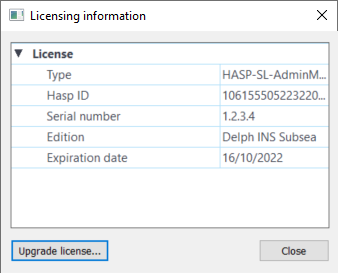
License manager (software licensing)
|
|
To install a product update, Delph INS Subsea license must be under warranty or Extended Maintenance Agreement - EMA. |
The procedure on how to register Delph INS Subsea is also available on the download center https://download.exail.com/delph-ins/ and in the How to register Delph INS Subsea.