Adding Time Offset (Time synchronization feature)
Time offset can be added to a data file in the Time view. It can be done:
|
>
|
by entering a known time shift value |
|
>
|
by using the Time synchronization tool to estimate the time shift value visually |
|
1.
|
Add data file to the project, refer to How to add data file?. Click one field of the channel then move it to the Time view (like drag and drop function). |
|
2.
|
Add another data file to the project. Click one field of the channel then move it to the Time view. |
|
3.
|
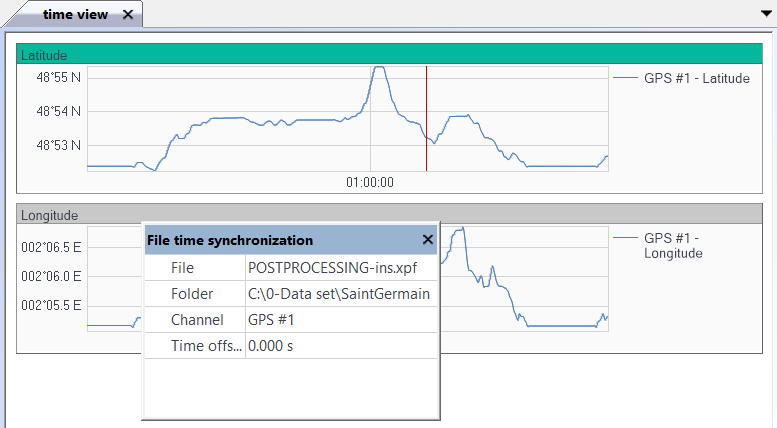
Select the XPF file in the Variables panel then right click and select Time synchronization. The File time synchronization pop-up is displayed: |
|
4.
|
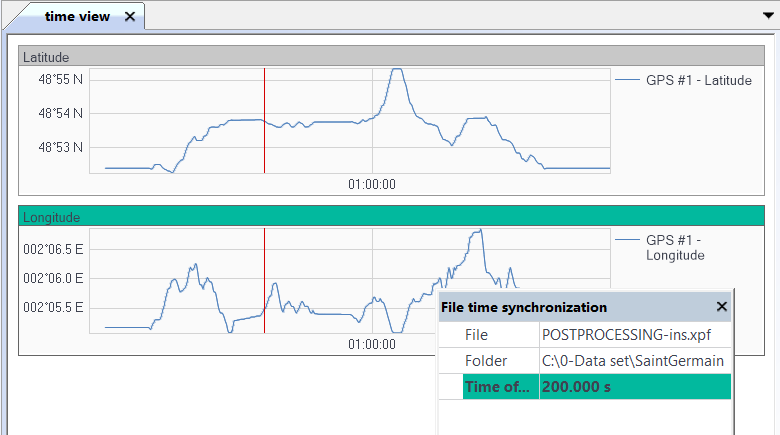
Enter a numerical value for the Time offset. |
|
5.
|
The data is then shifted in time: |
|
6.
|
Time offset can be also added with the Synchronization tool by selecting it: in the Graphics icons. It is available with the File time synchronization displayed. |
|
7.
|
To unselect the tool synchronization, close the File time synchronization pop-up. |