Displaying the data set in 2D geographical view
|

|
Click on the picture to view the procedure
|
Data set can be displayed in 2D geographical view by using the drag and drop function from the Variables panel to the Plan view of Delph INS Subsea.
|
2.
|
Add a Plan view by clicking on Windows menu then select the New Plan view option: |
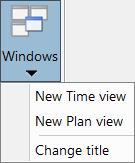
Select the Change title option to modify the title of the selected plan view.
|
3.
|
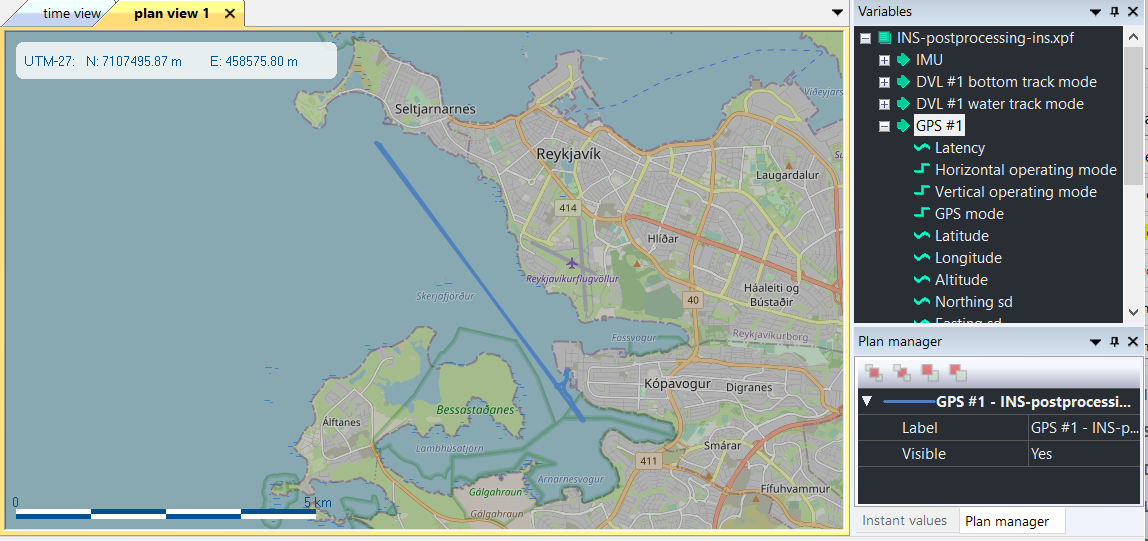
Click one data set (i.e. GPS#1) then move it to the Plan view (like drag and drop function). The trajectory is then displayed in the Plan view and the name of the data set is displayed in the Plan manager panel. |
|
4.
|
To zoom in or zoom out quickly, use the scroll wheel of the mouse. |
|
5.
|
Right click on the graph to display the pop-up menu that allows you: |
|
>
|
To display the position and scale placements at the left or right on the Plan view. |
|
>
|
To display the position as projected or WGS84 |
|
>
|
To zoom on a specific time scale |
|
>
|
To select View all to view all the plan. |
|
>
|
To copy to clipboard, the trajectory and the map layer can be pasted in Microsoft Word software for example. |
|
>
|
To use automatic UTM projection |
|
>
|
To display the distance traveled |
|
>
|
To view exactly the time cursor position |
|
>
|
To view the map layer, see below |
|
6.
|
To display the map relative to the trajectory, right-click and select Map layer. Then select the OpenStreetMap option. The display of this option depends on the Internet connection. |
|
7.
|
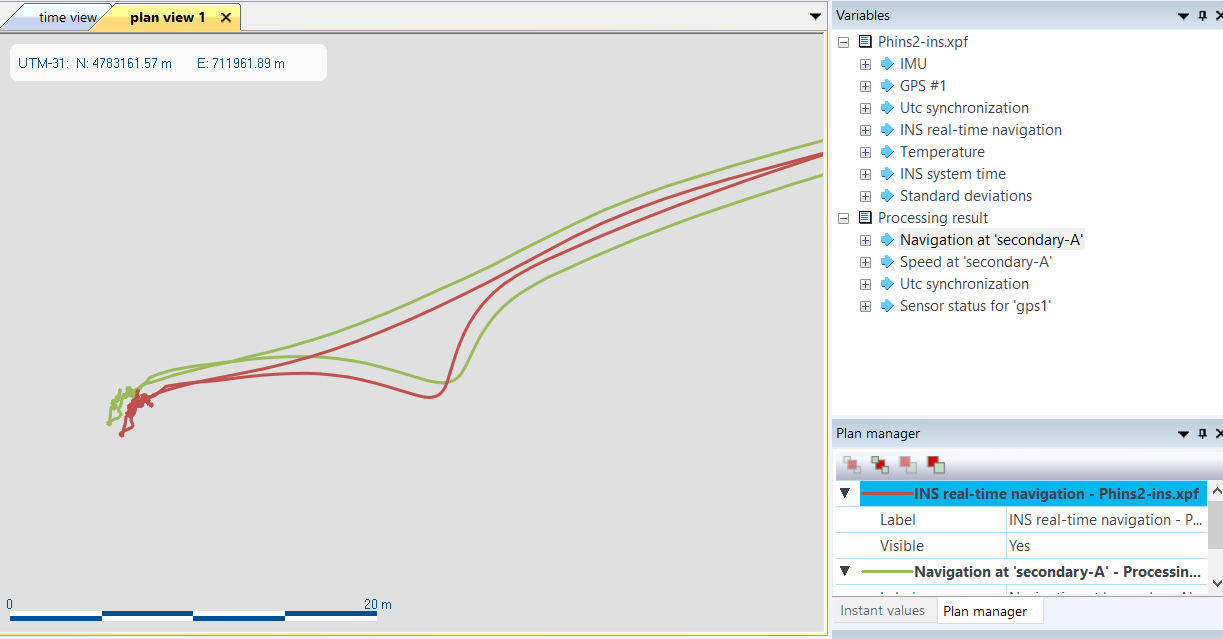
It is possible to overlay several data set in the same Plan view: select another data set and drag and drop it on the already displayed data. The two plans are overlaid. |
|
8.
|
Then use the scroll wheel of the mouse to zoom and display the difference between the two trajectories. See example below. |
|
9.
|
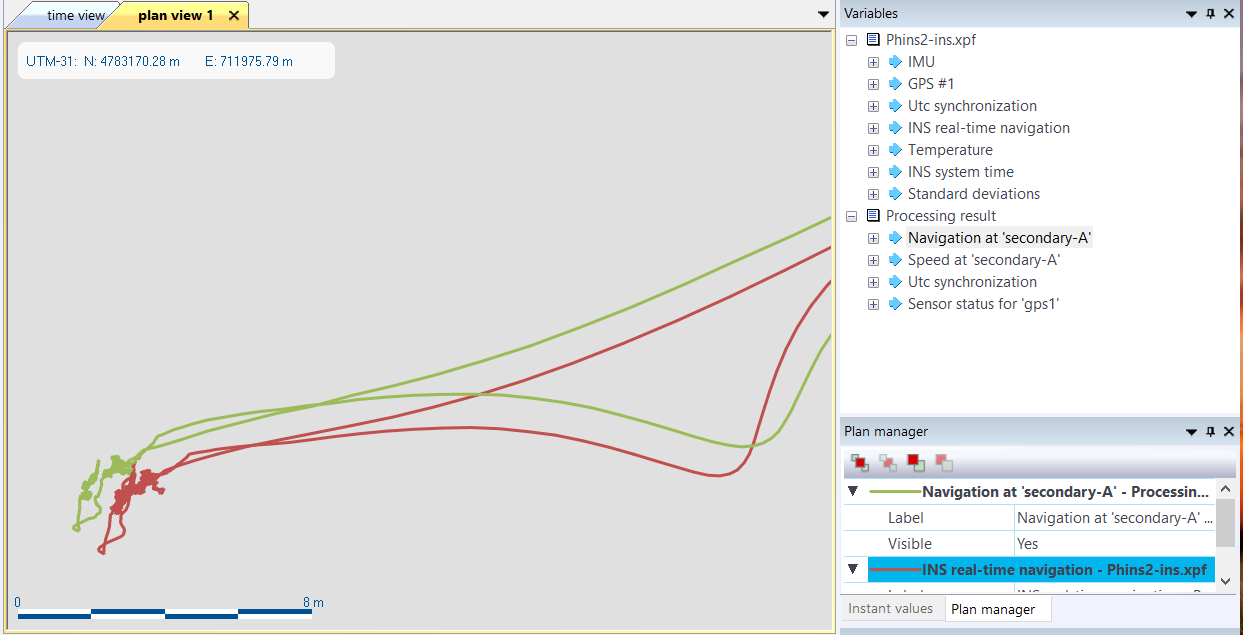
Each trajectory can be displayed first on the Plan view: in the Plan manager, rigjht click on the data set then select front or back option. Select the Sent to back option then the INS real-time navigation data set is displayed in the front: |
|
10.
|
To remove a trajectory, click on Plan manager panel then right click on the data set name and select Remove. |