Modifying the coordinates
Two coordinates are available:
| > | WGS84 / Word Mercator: geographical coordinate system |
| > | Projected: projected coordinate system |
| 1. | Open a project or create a new project (refer to How to create a new project). |
| 2. | Add a New Plan view then drag and drop the data set to be displayed. |
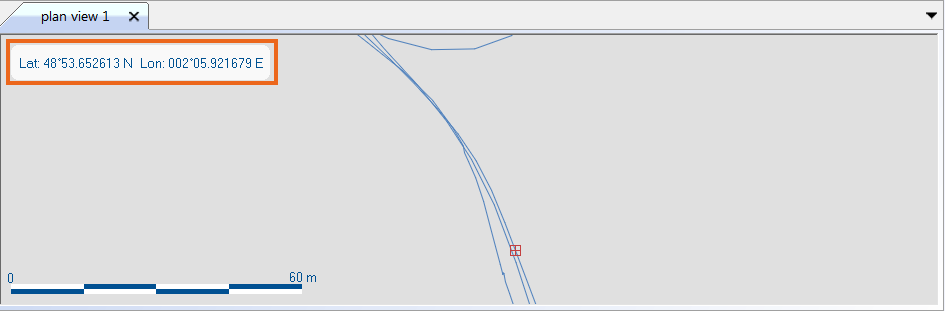
| 3. | To display the geographical coordinates in WGS84, right click on the Plan view then select Position > WGS84. The 2D geographical view is then displayed with the corresponding coordinates: |
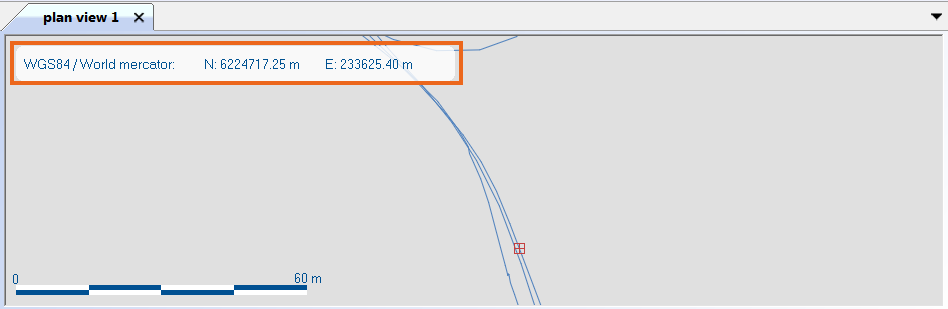
| 4. | To display the geographical coordinates in Projected, right click on the Plan view then select Position > Projected. The 2D geographical view is then displayed with the corresponding coordinates: |
| 5. | To compute the data UTM zone and display the data in this UTM projection, right click on the Plan view then select Use automatic UTM projection: |
By default the Mercator projection is applied.
The default projection can be modified in the Spatial Reference settings, refer to Selecting the spatial reference.