How to customize the generic text definition template
| 1. | Click on Add Data File button. |
| 2. | When selecting the Generic text file type, the Import data window is displayed. Click on Customize button to customize the data and create a template. Then the following window is displayed: |
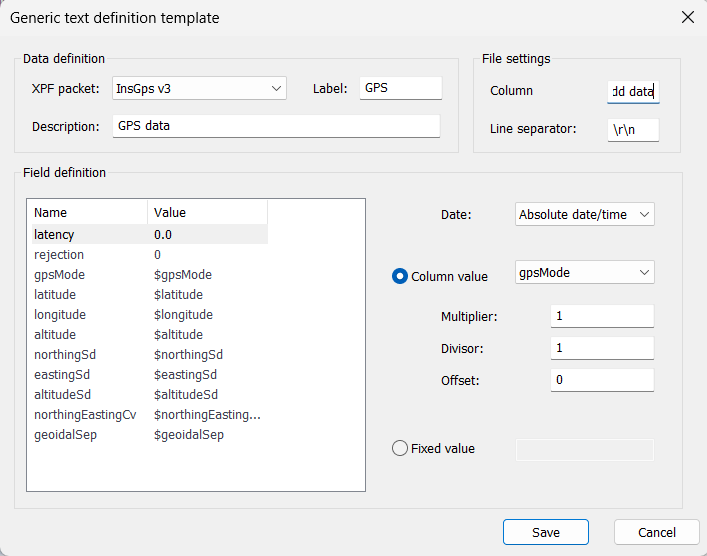
| 3. | In the Data definition frame: |
| > | Select the XPF packet version. This will displayed the fields in the Field definition frame. |
| > | If needed, modify the label of the XPF packet version |
| > | If needed, modify the description field |
| 4. | In the File settings, if needed, modify the column and the line separator |
| 5. | In the Field definition and for each field: |
| > | Select the date: Absolute date/time or Ellapsed time |
| > | Select and modify Column value or Fixed value |
| 6. | Save the template by clicking on the Save button. The template is saved in the Delph INS Subsea\Templates directory. |