Check recorded data
XpfViewer tool is supplied with Delph INS Subsea in order to decode recorded POSTPROCESSING data. It offers all the file analysis features like Delph INS (Time View, Plan View, etc.). This enables the user to check the content of the recorded data, and ensure that it is suitable for satisfactory post-processing.
This tool is available from the Windows Start menu and can be used without a license.
Procedure to decode files
| 1. | Launch XpfViewer (from Start menu / Exail / Xpf Viewer). |
| 2. | Click on Add data file... |
| 3. | Select the file(s) to be converted. |
| 4. | Start the import of files. |
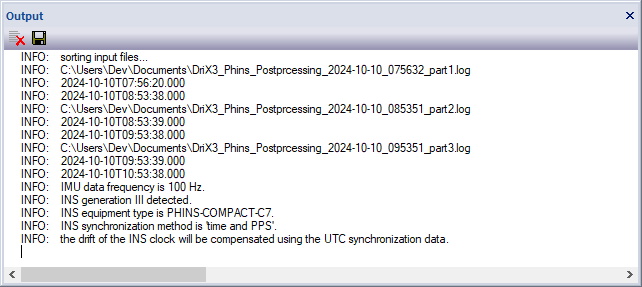
| 5. | Inspect the "Output" panel and check that there are no decoding problems. Warnings with missing IMU data indicate that the data recording is not correct and that the entire POSTPROCESSING stream transmitted by the inertial unit has not been written to the file. |