Rover File Post-Processing

|
The rover file can be defined during the project creation or later in the Processing panel. For Ublox files the extension is *.ubx. |
| 1. | If you have not created your project yet, select  ► New or click on ► New or click on  in the standard tool bar. in the standard tool bar. |
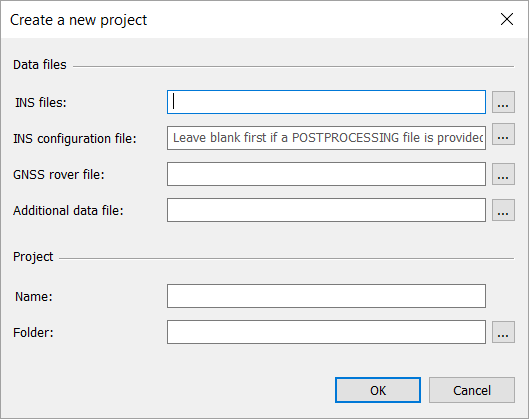
| 2. | Click on  on the right of GNSS rover file. on the right of GNSS rover file. |
Browse and select a *.ubx (Ublox) file in the dialog box which is displayed.
| 3. | If you have already created your project without a GNSS rover file, click on the right of the Rover – Data file and browse to select the desired file. |
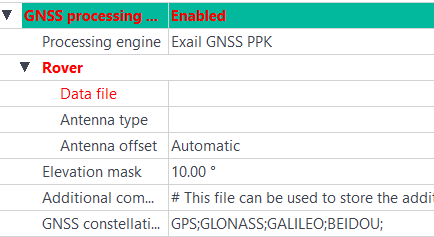
| 4. | If necessary, change the Elevation mask value (between -90° and +90°). |
All satellites outside the elevation mask range are not taken into account and this range is stored for each new project.
Click on the right of Additional commands. Click on the button which opens the Septentrio GNSS Commands editor window, where you can write the command line options.
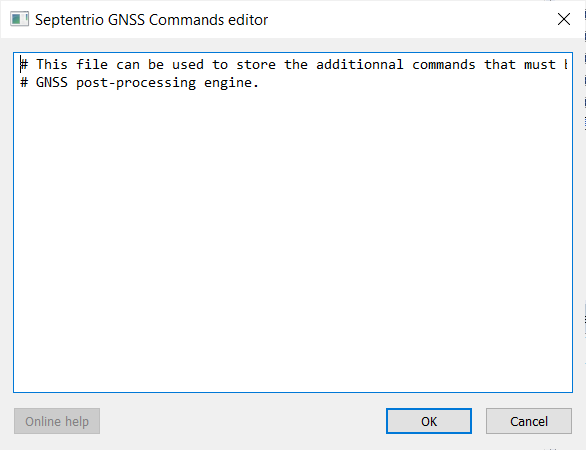
Note 2: The Additional commands override the other commands (e.g. Elevation mask).
Note 3: The comments must start with the “ # ” character.
Note 4: The commands are sent at the end of the GNSS engine initialization. If the command defining the elevation mask is defined in this window, the value defined in the GNSS processing parameters is overwritten.
Note 5: The list of commands is available either in the "Command And Log Reference Card" for an overview of the commands or "Command Line Interface Reference Guide" for a detailed description. These two documents are stored in the installation folder (\Exail\Delph INS Subsea\Doc).
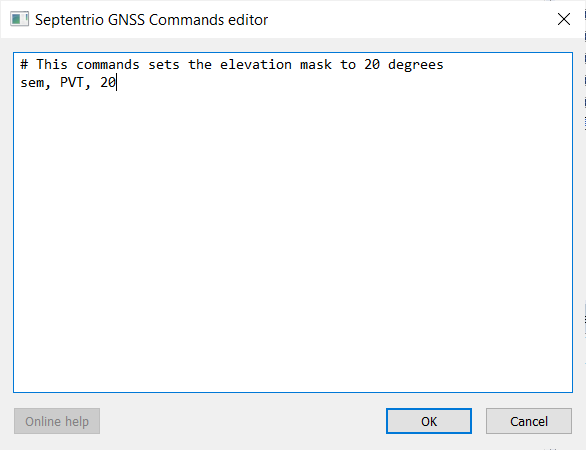
| 5. | In the above example, the 20° value for Elevation mask overwrites the 10° value entered previously. |
| 6. | Select GNSS constellations if needed in the list: GPS, GLONASS, GALILEO, BEIDOU |
| 7. | Make sure that the GNSS processing parameters is Enabled. |
| 8. | Make sure that Data file field displays Automatic. If necessary, right click on the GPS - Data file and select Connect to GNSS processing in the pop-up menu to connect the GNSS sensor to the GNSS post-processing.GNSS processing is displayed in both Data file and Channel fields. |
| 9. | Click on  of the standard toolbar to save the changes before Launching the Processing. of the standard toolbar to save the changes before Launching the Processing. |