Using a Base Station Post-Processing File
Base Station Properties
You can create, modify and delete in the project as many base stations as you want.
| Property | Description | Mandatory | ||||||
|---|---|---|---|---|---|---|---|---|
|
Site ID |
Base station identifier on four characters (letters and integers only) ; it is single and set by the base station owner. If the base station is not public, the limitation to four characters does not apply. |
X | ||||||
|
Type |
Indicates if the base station is one which data is imported from a server (public) (e.g. IGN) or if the base station has been customized by the user (custom). |
X | ||||||
|
Label |
Character chain enabling the user to define the station. This field is in general filled with the name of the geographical site where the base station is installed. |
|
||||||
|
Data File |
Name of the file containing the base station observations; the default extension is *.yy_ |
X | ||||||
|
Position |
This parameter is:
This option is necessary when the base station position was not accurately known during data recording. |
X |
| 1. | In the Processing panel at left, right click on GNSS processing parameters and in the pop-up menu, select Add base station. A new group called Base station is displayed in the GNSS Processingparameters area. |
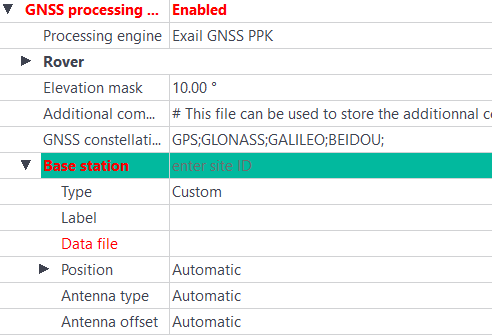
| 2. | Click on the right of the Base station field and enter its identifier (an acronym of four characters). |
| 3. | In the Type field, select Custom. |
| 4. | In the Label field, enter a label (i.e. a string containing a name which is used to identify the output) (optional). |
| 5. | Click on the right of Data file and use the  button to select the correct file. You can choice between Septentrio files or Rinex files. button to select the correct file. You can choice between Septentrio files or Rinex files. |
| 6. | In the Position field, define whether the base station location is to be set: |
| > | Automatic: to be set automatically |
| > | User defined: to be forced manually |
| > | Automatic -> User defined (copy): to copy the base station automatic position in order to modify it. |