Software Installation
System Requirements
The minimum recommended workstation characteristics are:
| > | Intel Core I5 – 2 GHz – 4 Gb RAM - 400 Mb HD space - mouse |
| > | Microsoft Windows 10 / Microsoft Windows 11 |
| > | Google Chrome (latest stable version), Firefox (latest stable version), Microsoft Edge (latest stable version; Chromium-based only), Microsoft Internet Explorer 11. |
It is recommended to install:
| > | Google Earth (http://www.google.com/earth) or QGIS (http://www.qgis.org) to visualize cartographic results |
| > | Notepad++ (http://notepad-plus-plus.org) to edit configuration files |
| > | Adobe Reader (or any other software to read PDF files) to display the User Guide |

|
Delph INS Subsea installer can be gathered from:
|
Installation Procedure
In case of dongle, do not connect it on the USB port of your computer before the installation.
| 1. | Double-click on the Delph INS Subsea installation program file. A setup wizard leads you in the installation of the software on your computer. Follow the steps carefully. |
| 2. | At the end of the installation, click on Next then click on Finish. Delph INS Subsea is installed. |
Delph INS Subsea shortcut is created on your computer desktop.
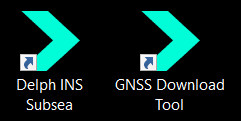
The Exail/DELPH INS Subsea folder is created in the Start menu.
| 3. | In case of dongle, connect the dongle to the USB port of the computer. |
| 4. | Double-click on the shortcut on your desktop to launch Delph INS Subsea. |
| 5. | In case of a software license, refer to How to register Delph INS Subsea. |