Adding a Vehicle Model
A vehicle model instruction defines a simulated sensor during a given period. Fake speed sensor information is input to the Kalman filter in order to improve the estimation of attitude / heading and to prevent the estimated position / speed to drift. The processing algorithm operation depends on the combination of the two different modes available.
Principle
Enabling a vehicle model is equivalent to sending a speed sensor forced to 0 m/s in the INS. Enabling a vehicle model on a non-static system might be problematic, it is recommended in this case to use the Auto mode that detects actually static periods.
The following modes are available:
|
>
|
Live: This mode allows applying the same vehicle model instruction that was active during the survey. |
|
>
|
10 m/s : This mode sends a 0 m/s speed input with 10 m/s standard deviation. |
|
>
|
0.1 m/s: This mode sends a 0 m/s speed input with 0.1 m/s standard deviation. |
|
>
|
Autostatic: This mode detects if the system is moving or not. If not, it constraints the speed to be null. |
|
>
|
No rotation: This mode detects if the system is moving or not. If not, it constraints the speed and the angular rotation to be null. |
|
>
|
Position: This mode indicates to the algorithm that the INS is static. Contrary to a standard Zupt where the speed is around 0, meaning that the system can drift drifting slowly, when the position mode is used, the system cannot drift. |
|
1.
|
You have two ways to add a vehicle model instruction in the processing parameters: |
|
>
|
Right click in the Processing panel and select Add vehicle model in the pop up menu. |
|
>
|
Select Processing parameters tab ► Inertial processing group ► Add vehicle model. |
A vehicle model instruction is added to the Processing Panel:
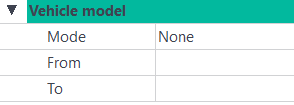
There is no limitation in the number of vehicle model instructions that can be added.
|
2.
|
Click on the right of Mode and select an item in the pull-down menu. |
|
3.
|
Click on From to edit the corresponding time value. Enter the beginning of the interval where the mode is to be applied. |
|
4.
|
Click on To to edit the corresponding time value. Enter the end of the interval where the mode is to be applied. |
|
|
|

|
The real-time vehicle model settings cannot be exactly retrieved from the information contained in the post-processing log. The following table shows which vehicle model mode is applied depending on the recorded status value (INS real-time navigation folder):
|
|
Real time status value
|
| vehicle model model activated |
Autostatic vehicle model activated |
Resulting vehicle model |
| Off |
Off |
none |
| Off |
On |
Autostatic |
| On |
Off |
10 m/s |
| On |
On |
Car model |