Managing the INS Parameters
When creating a new Delph INS Subsea project, you may provide an INS configuration file to initialize the project with the settings used in your device during acquisition. Before processing the data, you can edit these settings.

|
For all conventions, definitions and specifications of lever arms and misalignments, refer to the product Installation & Setup Guide. Depending on the firmware version, IMU data can be output in the vehicle frame (XV1, XV2, XV3) or in the INS frame (X1, X2, X3). When data are output in the vehicle frame it is not possible to correct rough and fine misalignments so the fields are hidden in the Web-Based Graphical User Interface. |
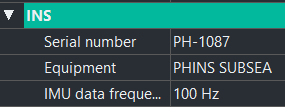
Equipment and IMU Data Frequency
Equipment name and IMU data frequency cannot be edited.
Rough Misalignment
Edit the rough misalignments: there may be possible inversions between the INS axes.
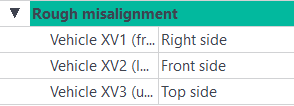
| 1. | Click besides Vehicle XV1 (front). Click on  . . |
A window displays the INS that you are currently using.
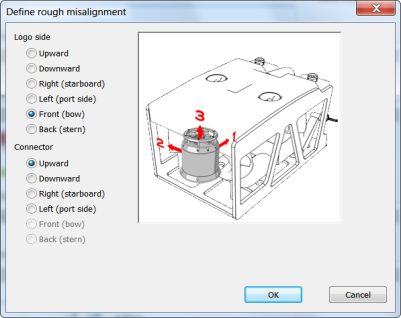
| 2. | Click on the radio buttons to orientate the logo and the connector face of the INS in the actual direction. The drawing is updated accordingly to your selections. |
| 3. | Click OK to validate your choice. The sides of the three axes of the vehicle are correlated to the actual sides of the INS. |
Fine Misalignment
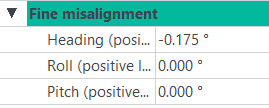
You can edit the fine misalignments: INS angular offsets are with respect to the vehicle reference frame.

|
For PHINS + DVL ready systems (DVL fastened beneath the PHINS), the edition of the fine misalignment values of the INS must be achieved together with the similar edition of the DVL misalignment value. |
| 1. | Click twice on the right of Heading. Enter a value in degrees. |
| 2. | Click twice on the right of Roll. Enter a value in degrees. |
| 3. | Click twice on the right of Pitch. Enter a value in degrees. |
Vehicle center of gravity lever arm
| 1. | You can choose the lever arms for the vehicle center of gravity. It will be use for the heave. |
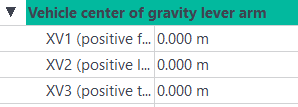
| 2. | Enter the values of the XV1, XV2 and XV3 in the corresponding fields. |