Build a QA / QC Report
You can generate an html quality report which displays the quality indicators based on the data from a .xpf file.
The report is generated either by Delph INS Subsea (see procedure below) or via the command line:
xpfAnalyser.exe <path>fileInput.xpf <path>fileOutput.xpf
In command line mode, open the report by double-clicking directly on the output html file.
| 1. | In the Variables panel, right click on the desired variable. |
| 2. | Select Build a QA/QC report. The Export data window is displayed. |
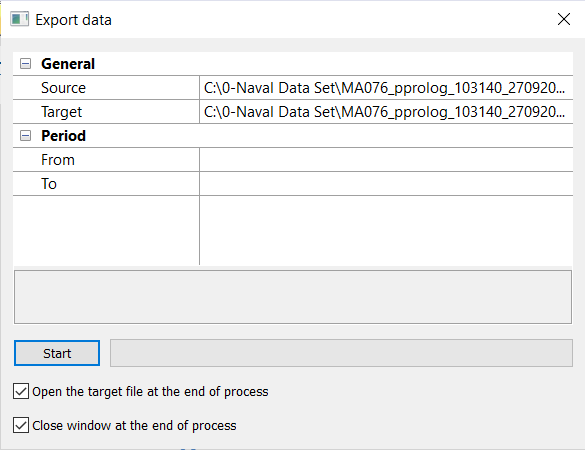
| 3. | In General, click on Source and select the file (e.g. *.xpf) to use for the report. |
Click on Target and browse to select the output file in which to display the report.
| 4. | Select the Period of exportation: enter a From and a To values. |
| 5. | You may select the Open the target file at the end of the process and / or the Close window at the end of the process options. |
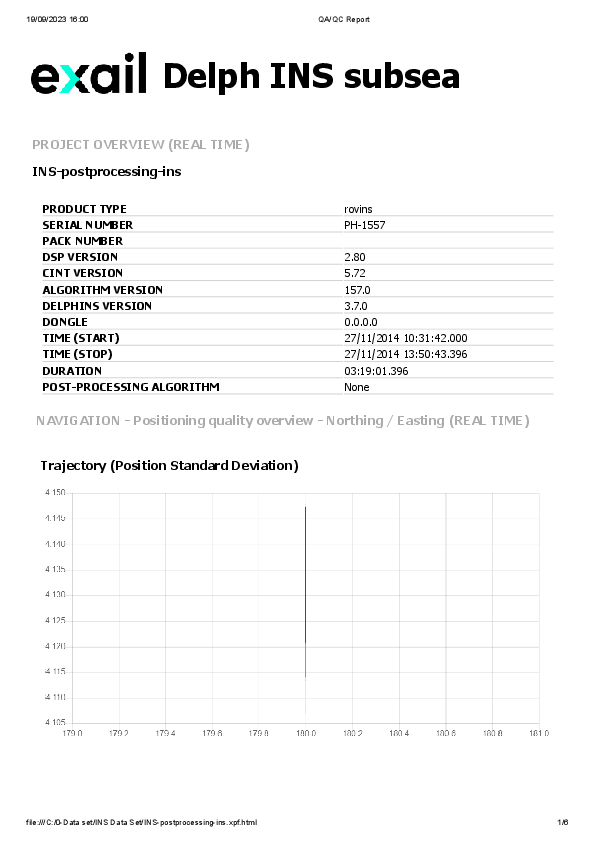
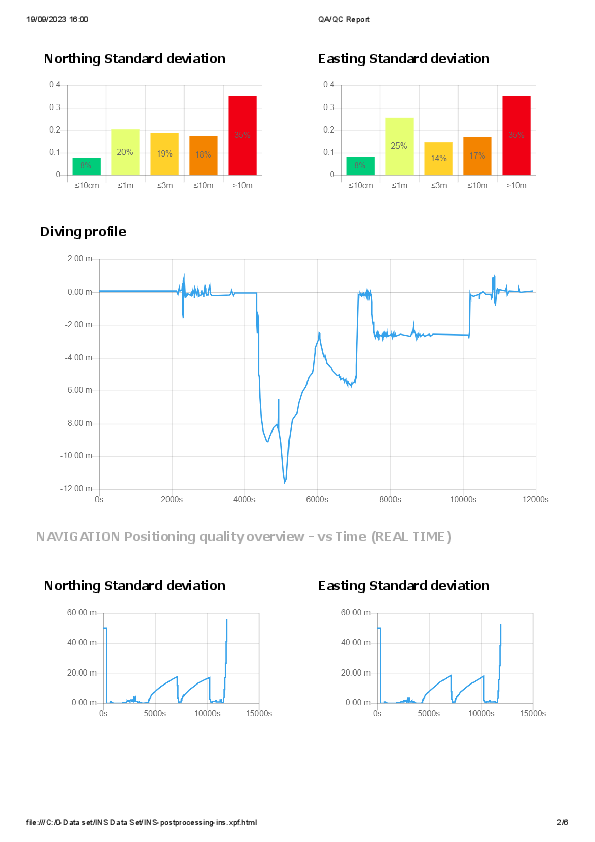
| 6. | Click on the Start button to run the export. The export result is displayed in the export html file with data and graphics. |
Details of the report
The report displayed as html file in the default browser shows the following information.
Standard information: quick information for basic user
| > | Systems & Applications: system serial number, alix version, etc… |
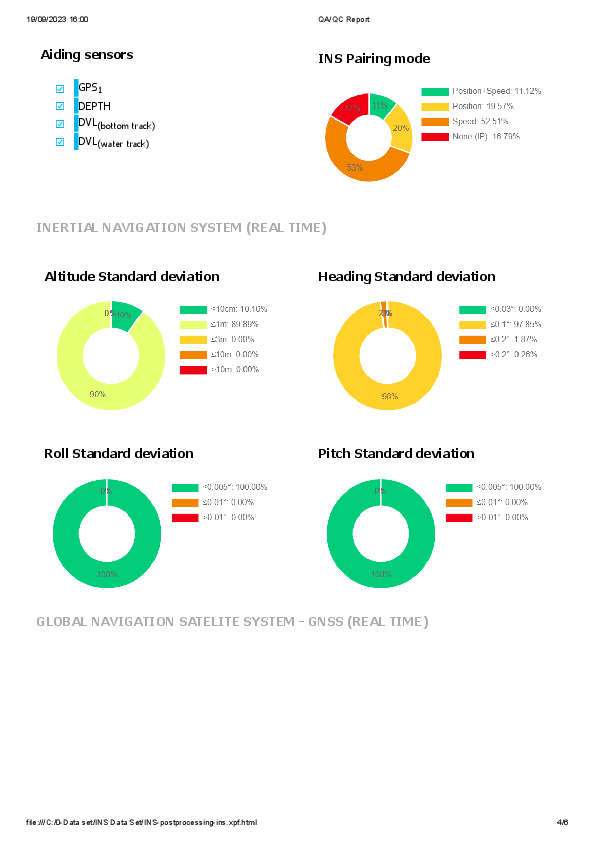
| > | Aiding sensors: type of aiding sensors |
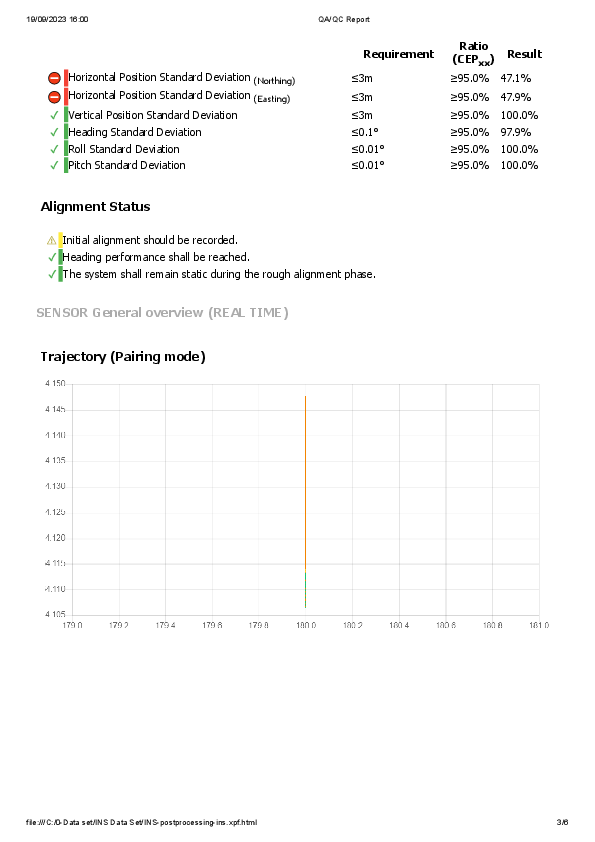
| > | Acceptance criteria: the report uses the acceptance criteria from the parameter file. For each criteria, the requirement, the status and the measured ratio will be displayed with color: |
| ● | Green: reliable data |
| ● | Red: risk of no reliable data |
Acceptance criteria values could be changed in the XpfAnalyzer.conf.xml file (see paragraph below)
| > | Alignment status |
| ● | Green: reliable data |
| ● | Red: risk of no reliable data |
| ● | Yellow: lack of information |
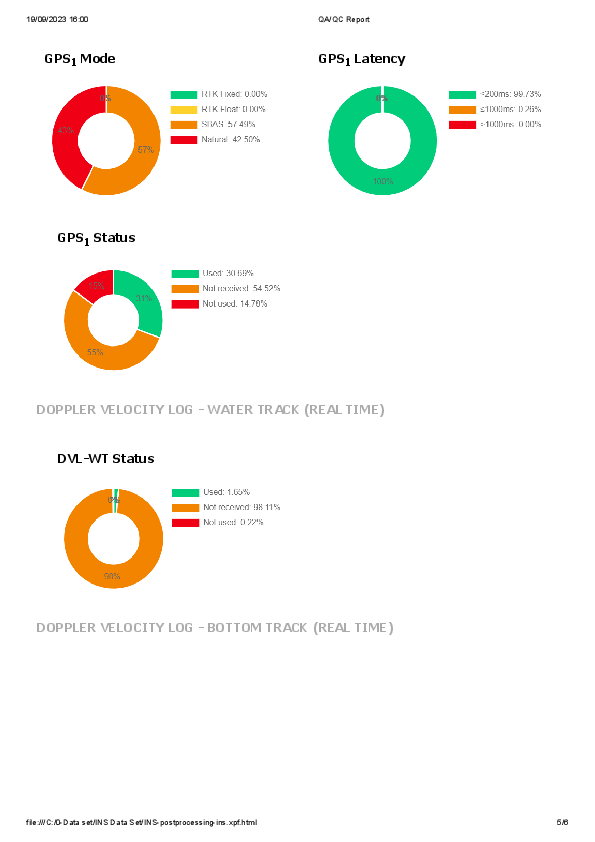
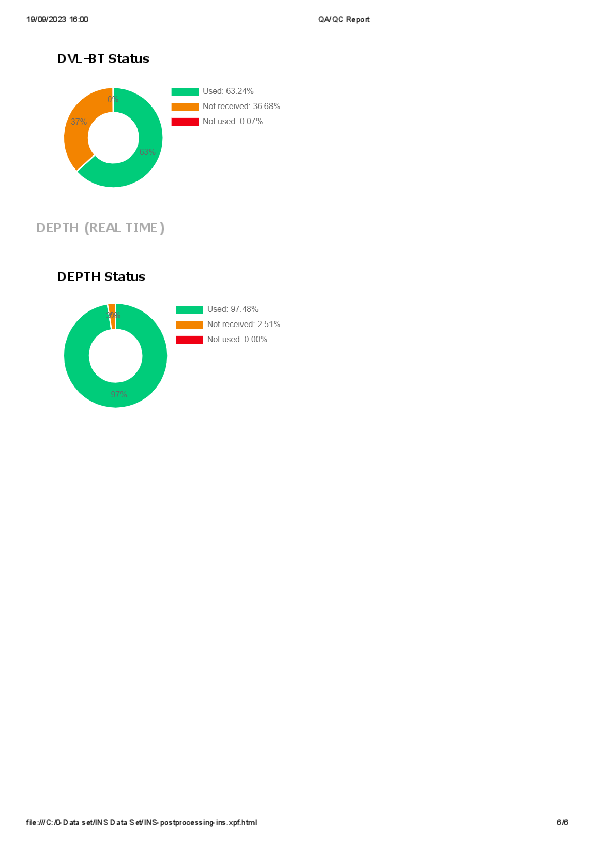
Advanced information: detailed information about the navigation, for advanced users.
| > | QA/QC Statistics |
| > | Flags |
Configuration for the report
Some data for the acceptance criteria can be configured. After opening the XpfAnalyzer.conf.xml file, you can modifiy the following criteria:
| > | <criterion id="NorthingSd" limit="1" unit="m" ratio="0.90"/> |
| > | <criterion id="EastingSd" limit="1" unit="m" ratio="0.90"/> |
| > | <criterion id="AltitudeSd" limit="2" unit="m" ratio="0.90"/> |
| > | <criterion id="HeadingSd" limit="0.1" unit="\u00B0" ratio="0.90"/> |
| > | <criterion id="RollSd" limit="0.01" unit="\u00B0" ratio="0.90"/> |
| > | <criterion id="PitchSd" limit="0.01" unit="\u00B0" ratio="0.90"/> |
<criterion id="NorthingSd" limit="1" unit="m" ratio="0.90"/> : this means that the value will be displayed in case of the Northing Standard Deviation is superior or equal to 1 m.