How to cancel license Detachment offline
This procedure details the steps involved in canceling the detachment of an offline license on a target machine.

|
It is impossible to cancel a license detachment of a target machine from the server. It is recommended to detach the license of the target machine first before resetting the machine, during a mission at sea that ends early for example. |
| 1. | On the target machine where the detached license is installed, open http://localhost:1947. The Sentinel Admin Control center page is displayed. |
| 2. | Click on the Products tab at the left: |

| 3. | Click on the Cancel License button and confirm the operation on the next screen: |

| 4. | Click on the Cancel License button. The system create a .r2h (remote to host) that shall be saved using the Save As... button: |
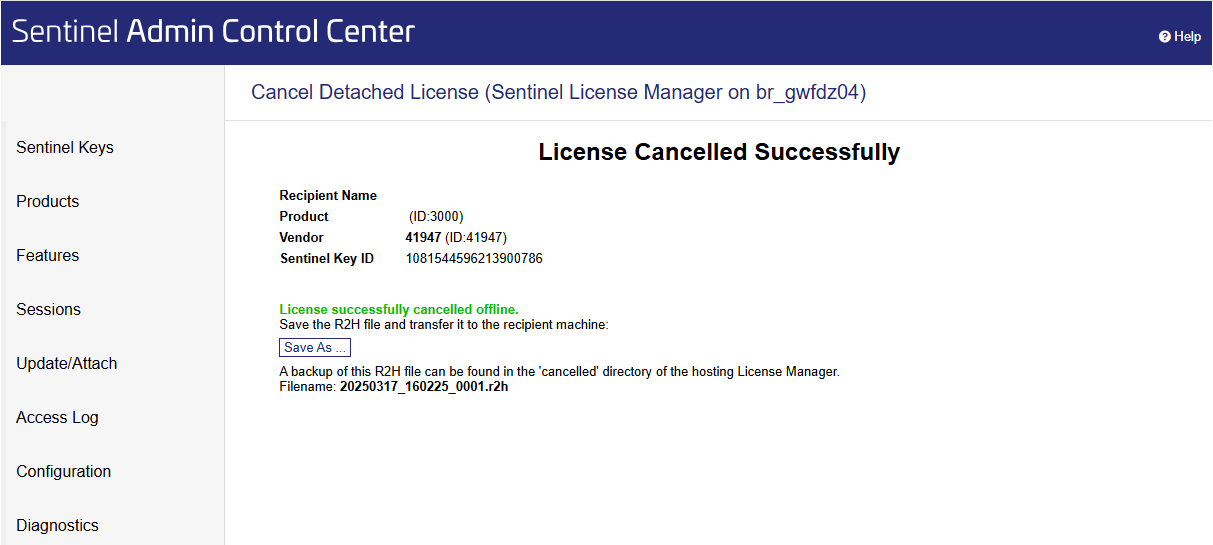
| 5. | Transfer the .r2h file onto the license server. |
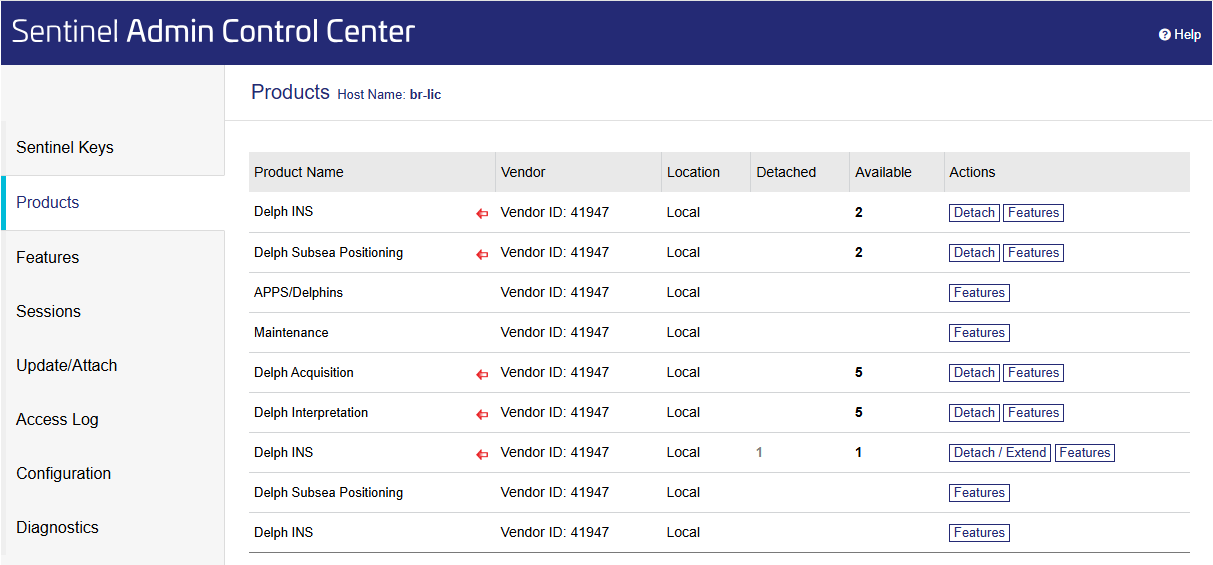
| 6. | On the license server we can check that a license is detached by opening http://localhost:1947 and click on the Products tab: |
| 7. | Click on the Update/Attach tab and select the .r2h file received from the remote machine: |
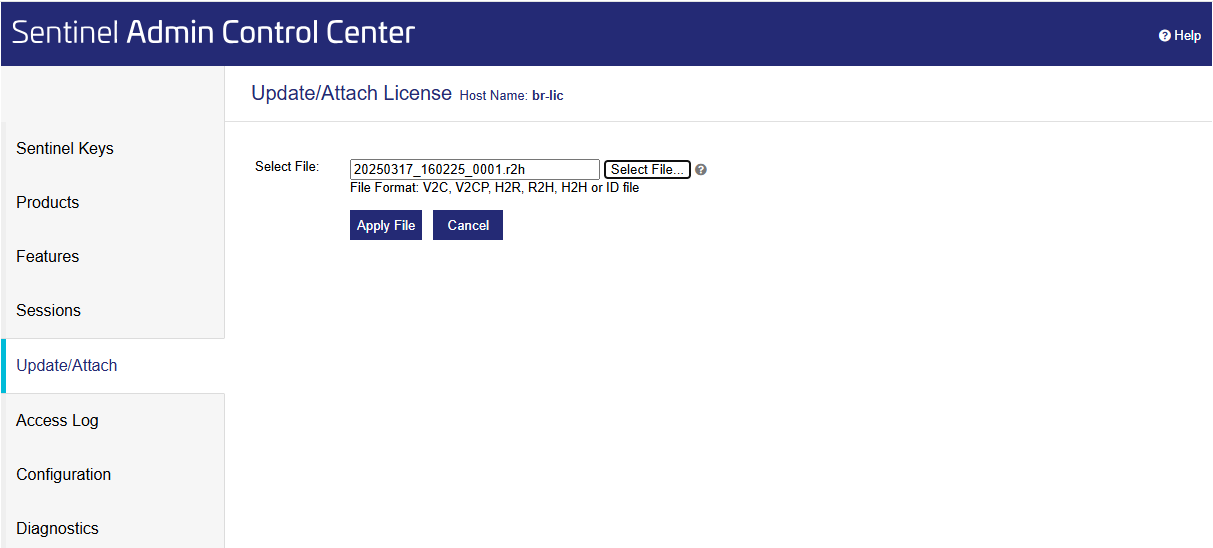
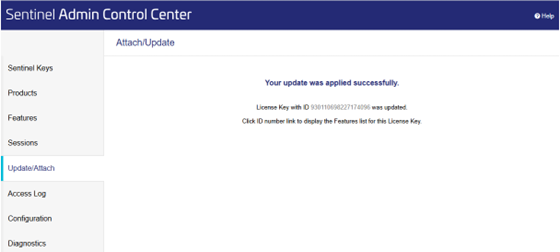
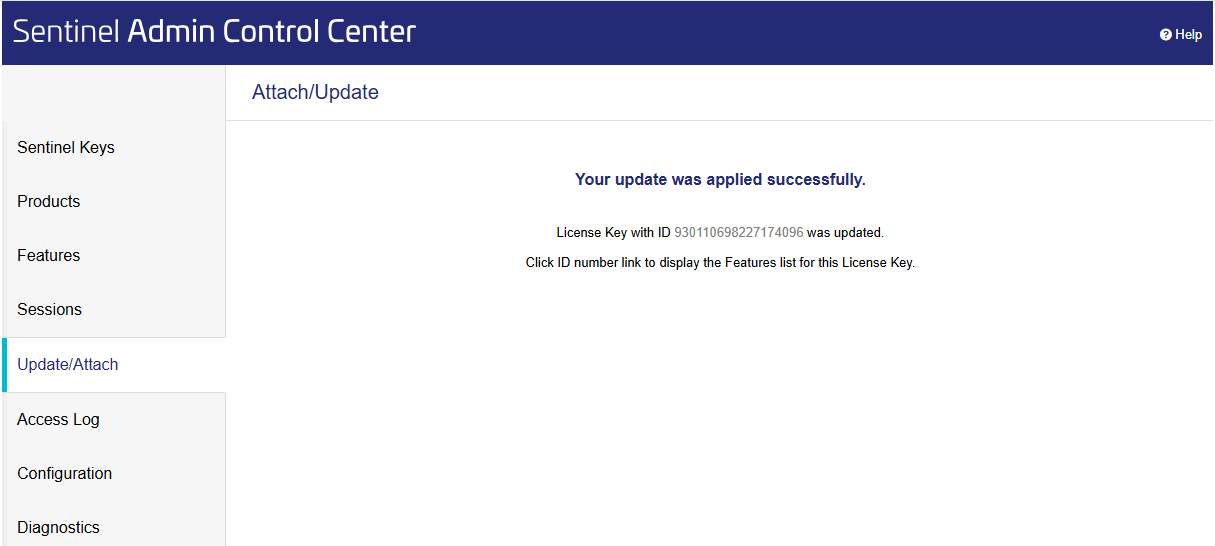
| 8. | Click on Apply File. A new page appears to confirm the transfer of the detached license to the server: |
Click on the Products tab on the server, it shows the license is restored and there is no detached license anymore:
| 9. | Click on the Products tab on the server, it shows the license is restored and there is no detached license anymore: |
