How to detach a license offline
This procedure details the step to detach a license offline on a target computer.
| 1. | On the target computer (where the license must be installed), install Delph INS Subsea and open the Sentinel Admin Control Center using http://localhost:1947. |
| 2. | Click on the Diagnostics tab: |
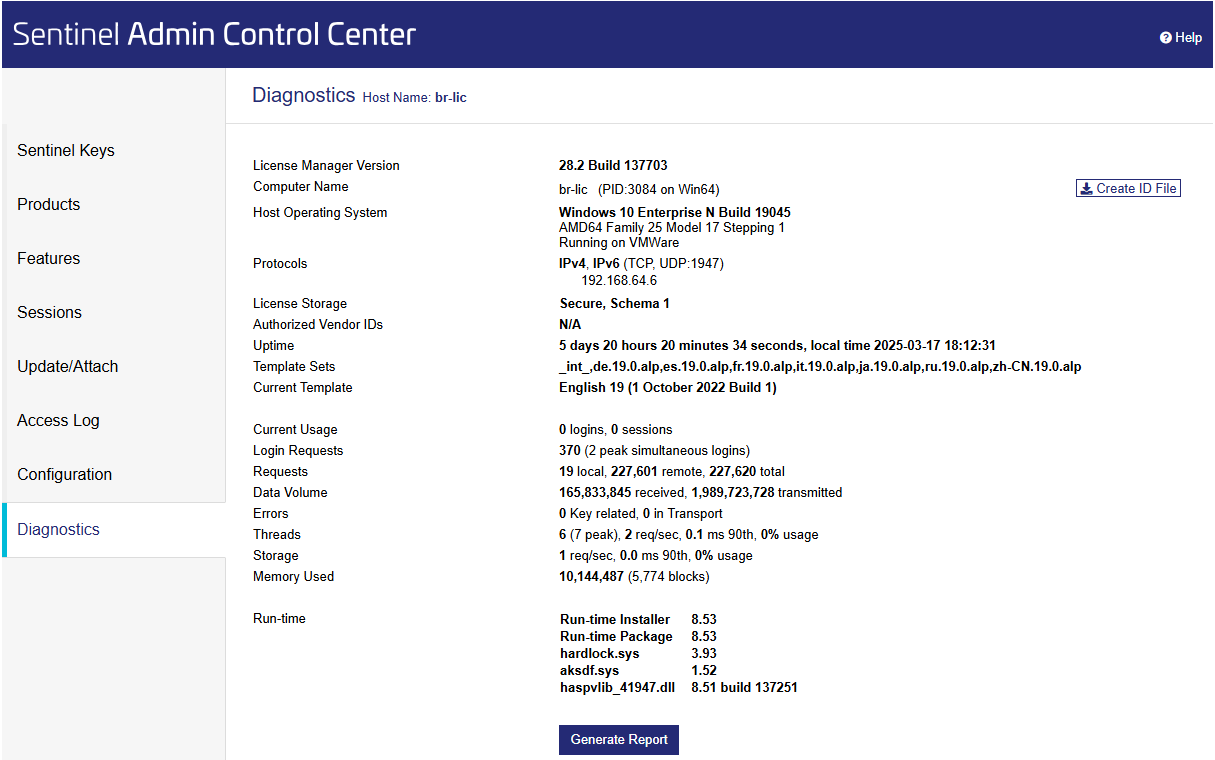
| 3. | Click on Create ID File to save generate a .r2h file (remote to host) to be transferred on the server machine. |
| 4. | Transfer the .r2h file onto the license server. |
| 5. | On the license server open the Sentinel Admin Control Center from http://localhost:1947 and click on the Update/Attach tab. |
| 6. | Select the .r2h file: |
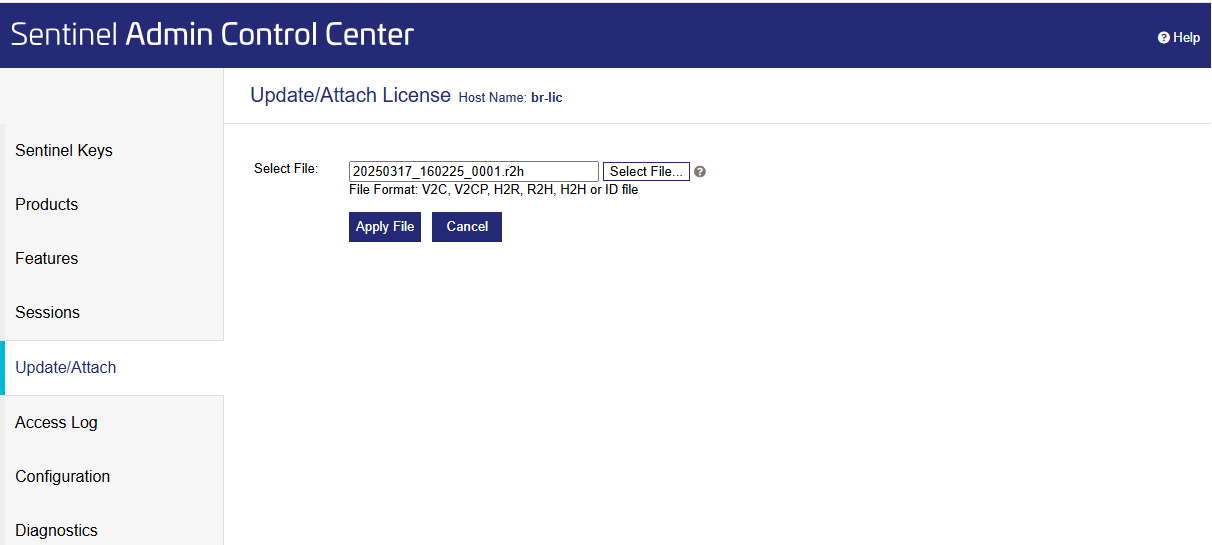
| 7. | Click on Apply File. The system will indicate the success of the operation: |

Click on the Products tab and click on the Detach button of the license you want to detach:
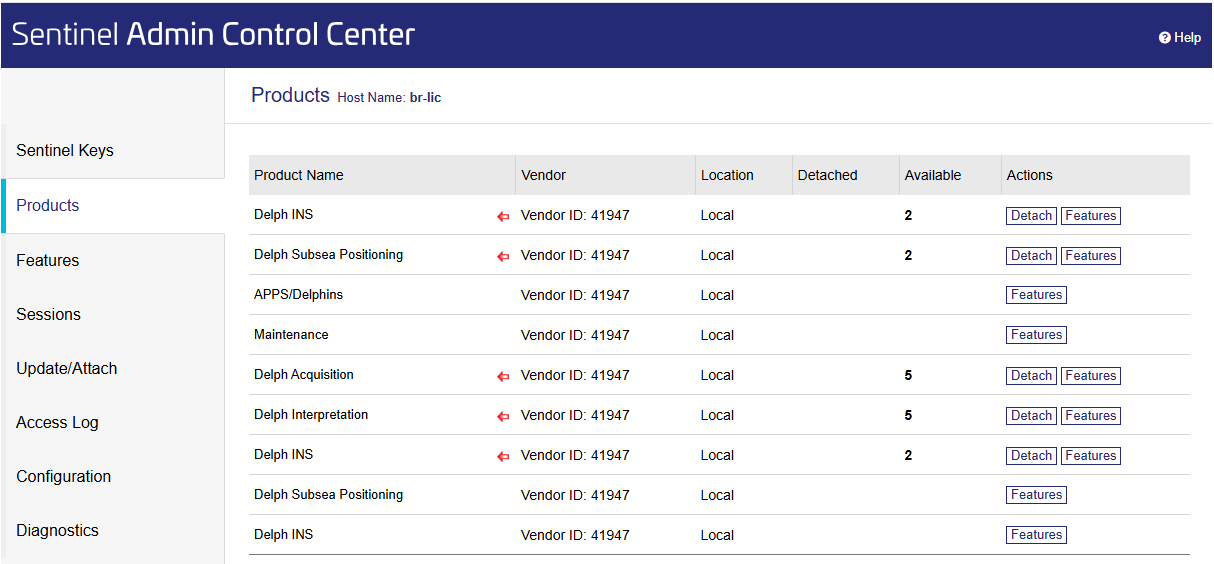
| 8. | The detachment screen appears, select the Offline method and the name of the destination computer, enter the expiration date for the detachment and enter a comment: |
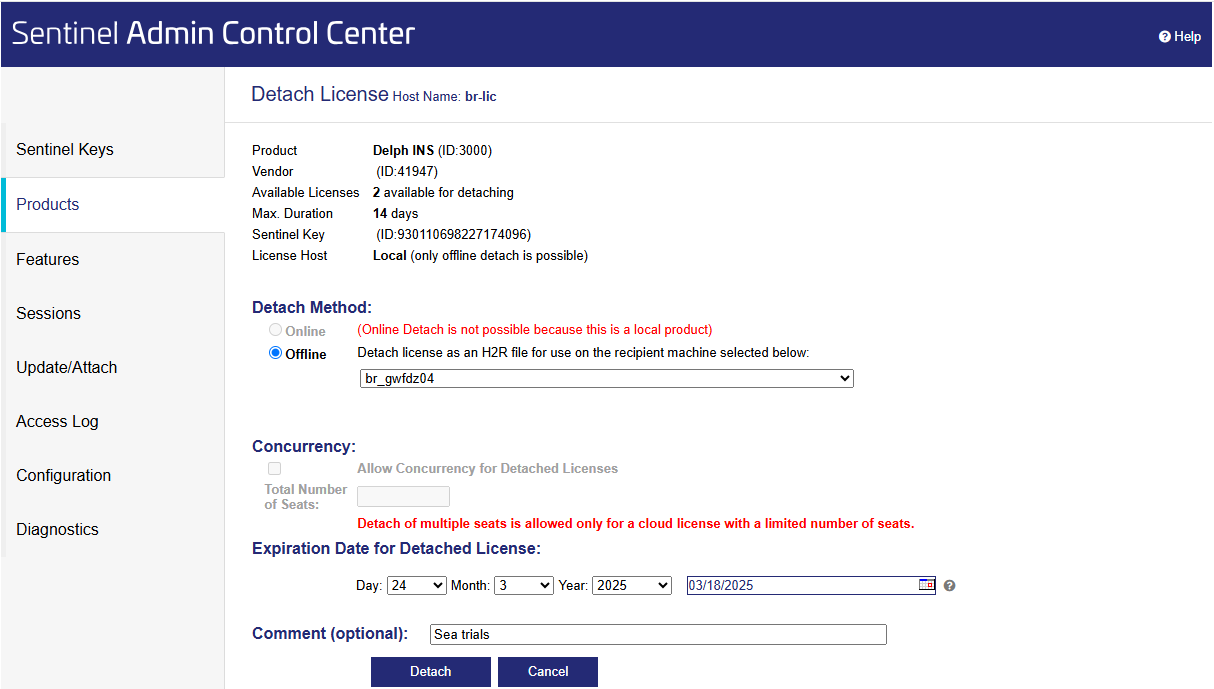
| 9. | Click on the Detach button and from the next screen save the .h2r file (remote to host) to be sent to the remote machine: |
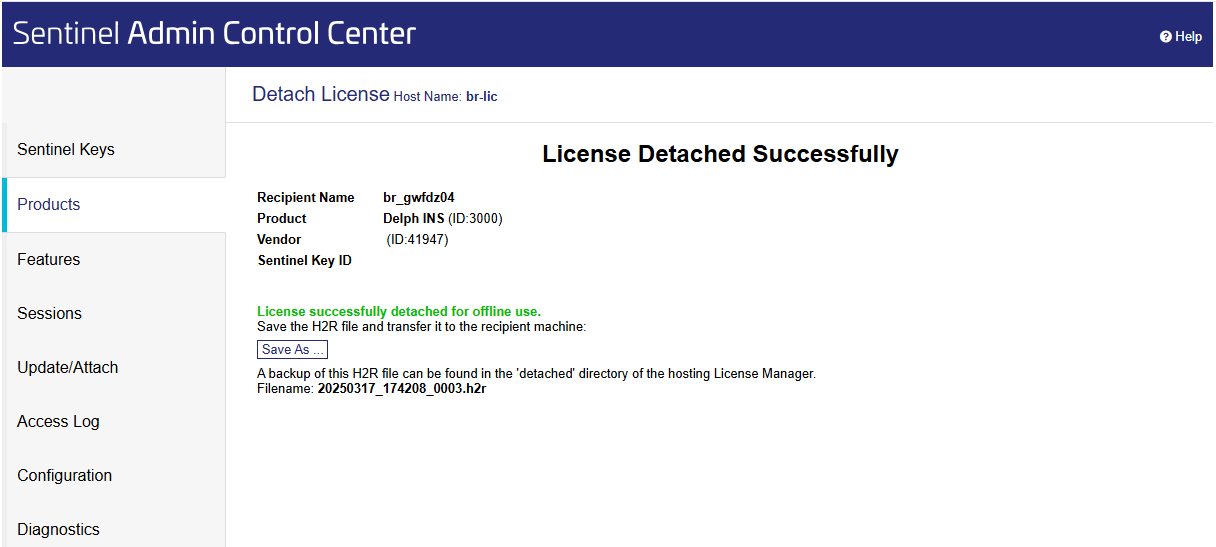
| 10. | Transfer the .h2r file (host to remote file) to the remote machine. |
| 11. | On the target computer open the Sentinel Admin Control Center using http://localhost:1947 and click on the Update/attach tab and select the .h2r file: |
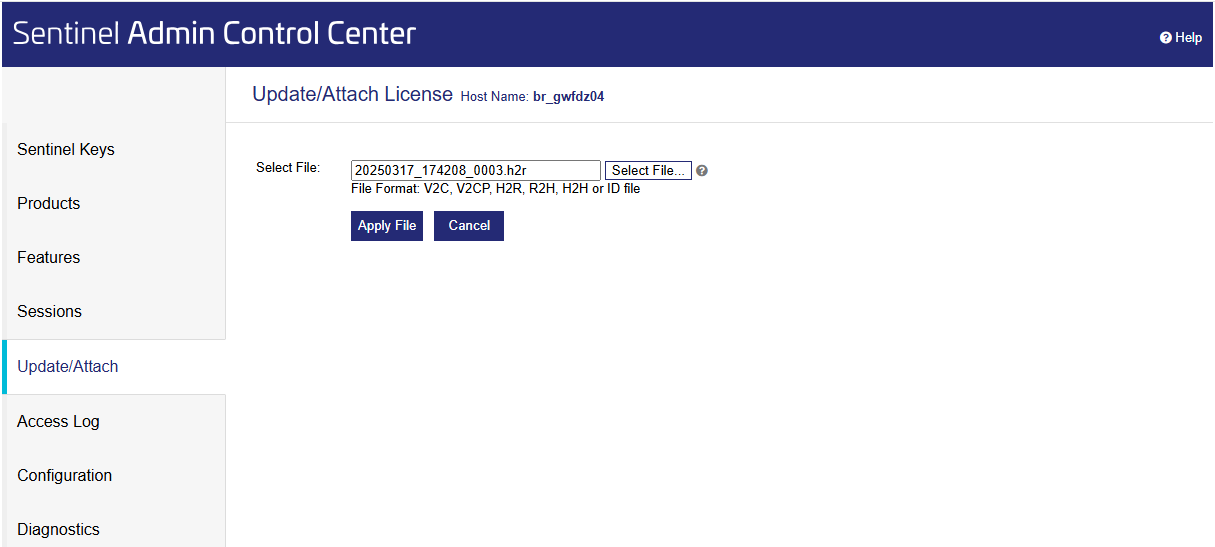
| 12. | Click on Apply File. The license is transferred to the target machine. |