How to register Delph INS Subsea
Delph INS Subsea offers several licensing schemes including hardware and software licenses.
Therefore, the product delivery will vary accordingly:
| > | Hardware licenses have a physical delivery that includes an USB dongle. |
| > | Software licenses are delivered by e-mail only and must follow a 3-steps activation procedure described in this section. |
License reservation
As Exail receives your order, a license is prepared according to the purchased product definition. A license reservation code is created and sent by mail (and e-mail when it is known). This code is in the form aaaaaaaa-bbbb-cccc-dddd-eeeeeeeeeeee.
Collect the fingerprint of the machine
The fingerprint is collected using the License Manager software when Delph INS Subsea is already installed.
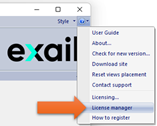
| > | For local license installations you can install the Delph INS Subsea software, the License Manager is part of the installation and can be launched using the ? / License manager command located in the right part of the ribbon: |
| > | For network license, the installation of Delph INS Subsea on the server is not required. You can just download the HASP License Manager installation program and run it to install the License Manager. Then launch it using the icon located on the desktop: |

From the License manager:
| 1. | Open the Collect Status Information tab. |
| 2. | Select Installation of a new protection key. |
| 3. | Click on Collect Information. |
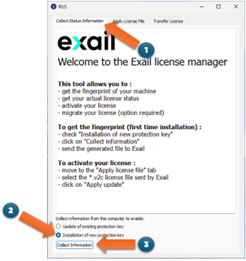
| 4. | Save the fingerprint of the workstation (.c2v file) and send it by e-mail to license.delph.ins@exail.com. Please do not forget to mention the reservation code in the message. |
Receive and apply the license file
Exail will finalize the software license with the received computer fingerprint, then send you the license file. The activation procedure is as follows:
| 1. | Save the received license file (.v2c) on your computer. |
| 2. | Open the License Manager software as described in the previous step. |
| 3. | Open the 2nd tab Apply License File. |
| 4. | Select the license file in the Update File field and click on Apply Update. |
| 5. | Verify that the log above displays a success message. |
Technical details
The License Manager is a Windows service.
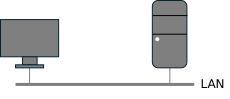
On a LAN (local area network) a workstation running Delph INS Subsea communicates with the license server via UDP and TCP on port 1947.
When the workstation is connected to the server through a WAN (Wide Area Network) the address of the server shall be indicated on the workstation side and the firewall rules of the network shall allow traffic on port 1947 for UDP and TCP.
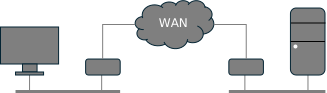
To do this configuration on the workstation, open http://localhost:1947/_int_/config_to.html in an internet browser then follow these steps:
| 1. | Check the Allow Access to Remote Licenses entry. |
| 2. | Input the address of the license server in the Remote License Search Parameters field. |
| 3. | Click on Submit to apply changes. |
Note: This configuration shall be applied when connecting to the license server using a VPN.